A status page is the thing your customers read. This guide covers creating one, the settings on its detail screen, and what happens when you publish. Components and custom domains have their own guides.
Create a page
- Status pages, then New page
The name is what shows at the top of the public page. The address is generated from it and shown before you save:
acme-cloud.statusbee.co. You can pass your own slug if the generated one is taken or awkward. - Choose a template or start blank
Templates seed component groups and components typical for a kind of product (SaaS, API, agency). Everything they add can be renamed, moved or deleted.
- Publish when you are ready
A page exists as a draft until you publish it. Drafts are visible only in the dashboard. Publishing is a single action from the page detail and cannot be undone, though a page can be deleted.
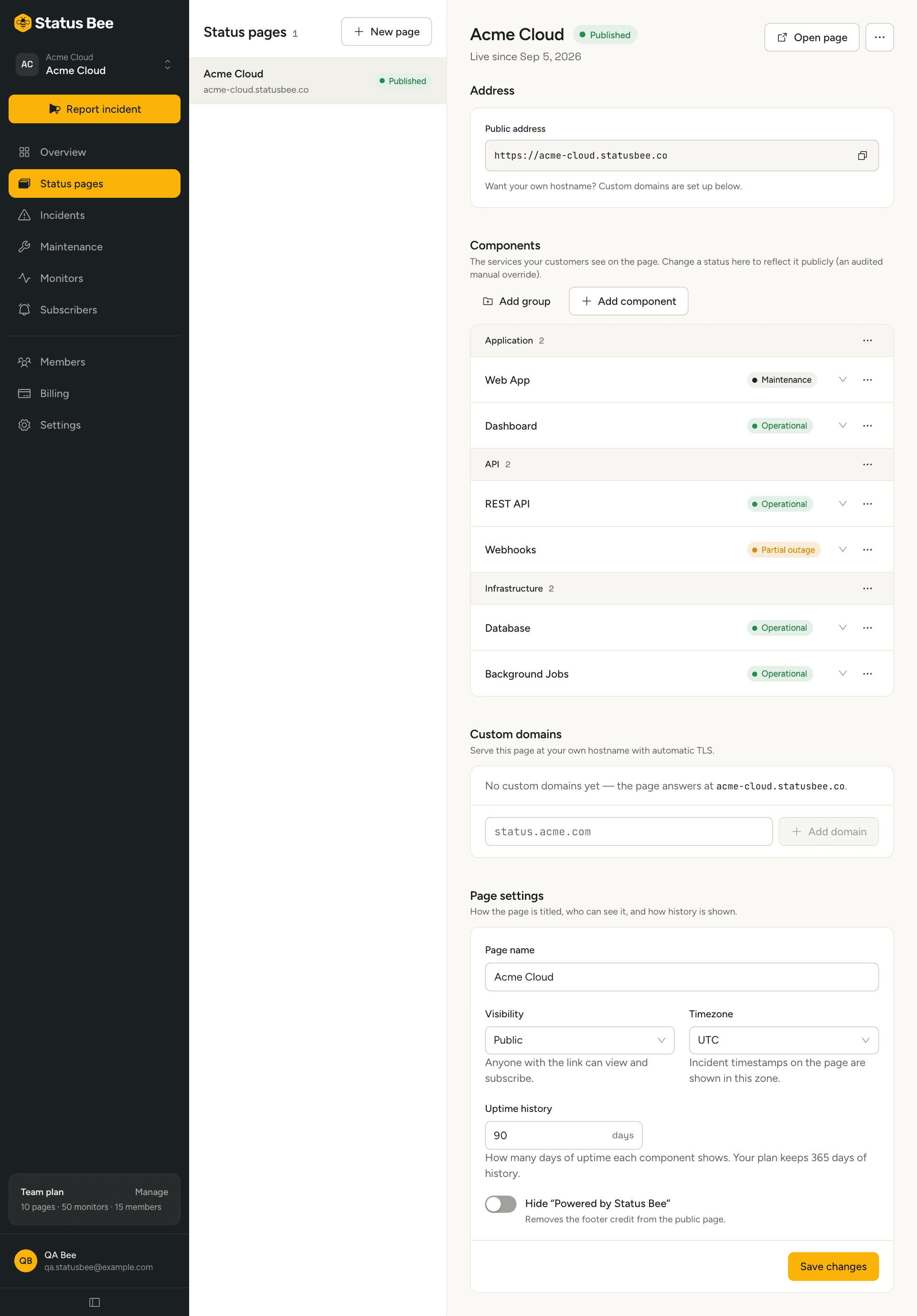
The address
Every page answers at {slug}.statusbee.co over HTTPS, forever, whether or not you add a custom domain. Copy it from the Address block. To serve the page at a hostname you own, see Custom domains.
Page settings
| Setting | What it does |
|---|---|
| Page name | The heading on the public page and in notification emails. |
| Visibility | Public is served to anyone. Password, Private and SSO are available on Business and hide the page from the public until the reader authenticates. |
| Timezone | The zone incident and maintenance times are displayed in on the public page. Timestamps are stored in UTC regardless. |
| Uptime history | How many days each component's uptime strip shows. Capped by your plan: 30 on Free, 90 on Starter, 365 on Team and Business. |
| Hide “Powered by Status Bee” | Removes the footer credit. Team and Business plans. |
Branding (logo, colours) and SEO fields live on the page record too and are set through the API's PATCH /user/pages/:id with branding and seo objects; the dashboard exposes the common ones.
What publishing does
Publishing marks the page live and emits a page.published event. From then on every change to components, incidents or maintenance rebuilds the page's snapshot within a second or two, and the public address serves the latest snapshot with a short cache. Readers never wait on the database, which is why the page keeps working during a bad day on our side.
Several pages in one workspace
A workspace can hold as many pages as the plan allows. Common reasons for more than one: an internal page with more detail than the public one, a page per region, or audience-specific pages that show one customer only the components they use. Incidents and maintenance are created per page, so choose the page when you report.
Deleting a page
From the page's menu. The public address stops serving immediately and the slug becomes available again. Subscribers, incidents and history go with it, so export subscribers first if you might want them back.
API
Pages are GET, POST, PATCH and DELETE on /user/pages, with POST /user/pages/:id/publish. See Status pages in the API reference.