Outbound webhooks are how your team hears about things, as opposed to subscribers, who are your customers. Point one at a Slack incoming webhook, a pager service, Zapier, or your own endpoint, and every event in the workspace arrives there as a signed POST.
Add a webhook
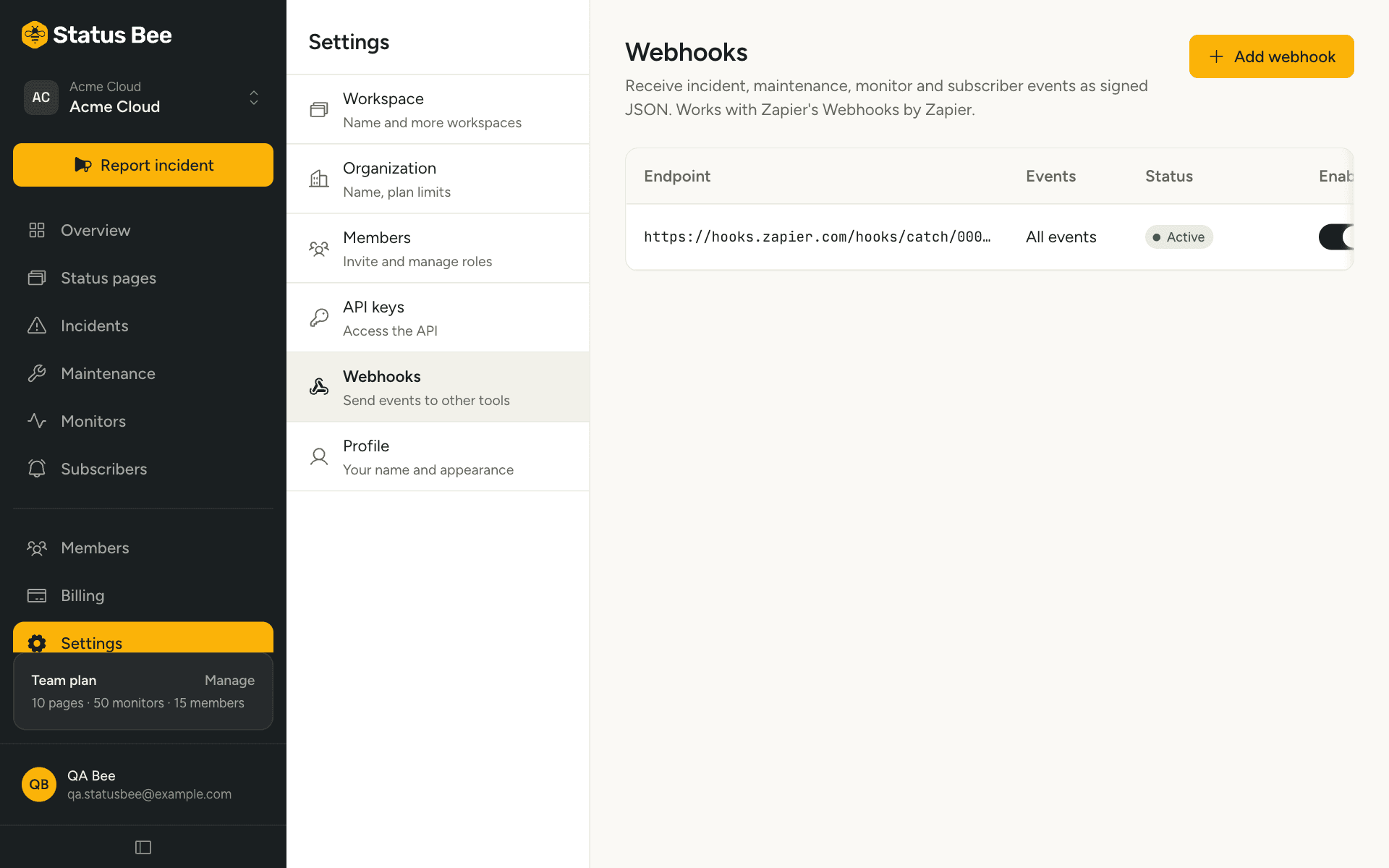
- Settings, Webhooks, then Add webhook
Paste the HTTPS URL. HTTP is refused.
- Pick events
Leave the list empty to receive all thirteen, or pick the ones you want.
monitor.down,monitor.upand the incident events are the usual set for a team channel. - Store the secret
It is shown once. Your receiver uses it to verify that a delivery came from us; see Verify signatures.
Enable, disable, delete
Each webhook has a switch. Disabled webhooks keep their configuration and secret but receive nothing. A webhook that fails 20 deliveries in a row is disabled automatically and shows why; fix the endpoint and switch it back on. Deleting removes it for good.
What arrives
A JSON envelope with the event type, a timestamp, the workspace, and event-specific data. The full contract, every event's payload, and the retry rules are in the Webhooks section.
Common setups
| Goal | How |
|---|---|
| Post outages to a team chat | Point the webhook at a small relay or a workflow tool that reformats the envelope for Slack or Teams. For customer-facing incident posts, subscribing the channel to the status page directly is simpler. |
| Page the on-call | Subscribe to monitor.down and monitor.up and forward to your alerting tool's events endpoint. |
| Mirror status into your app | Subscribe to component.status_changed and the incident events, and update a banner from them. For a read-only pull instead, use the public summary endpoint. |
| Renew certificates before they expire | Subscribe to monitor.ssl_expiring and open a ticket from it. |
API
Webhooks are CRUD on /user/webhooks; PATCH with enabled: true re-enables a disabled one. See Outbound webhooks in the API reference.