An incident is how you tell customers something is wrong, and keep telling them until it is not. The honey button in the sidebar, Report incident, is there from every screen because the first minute is the one that matters.
Report an incident
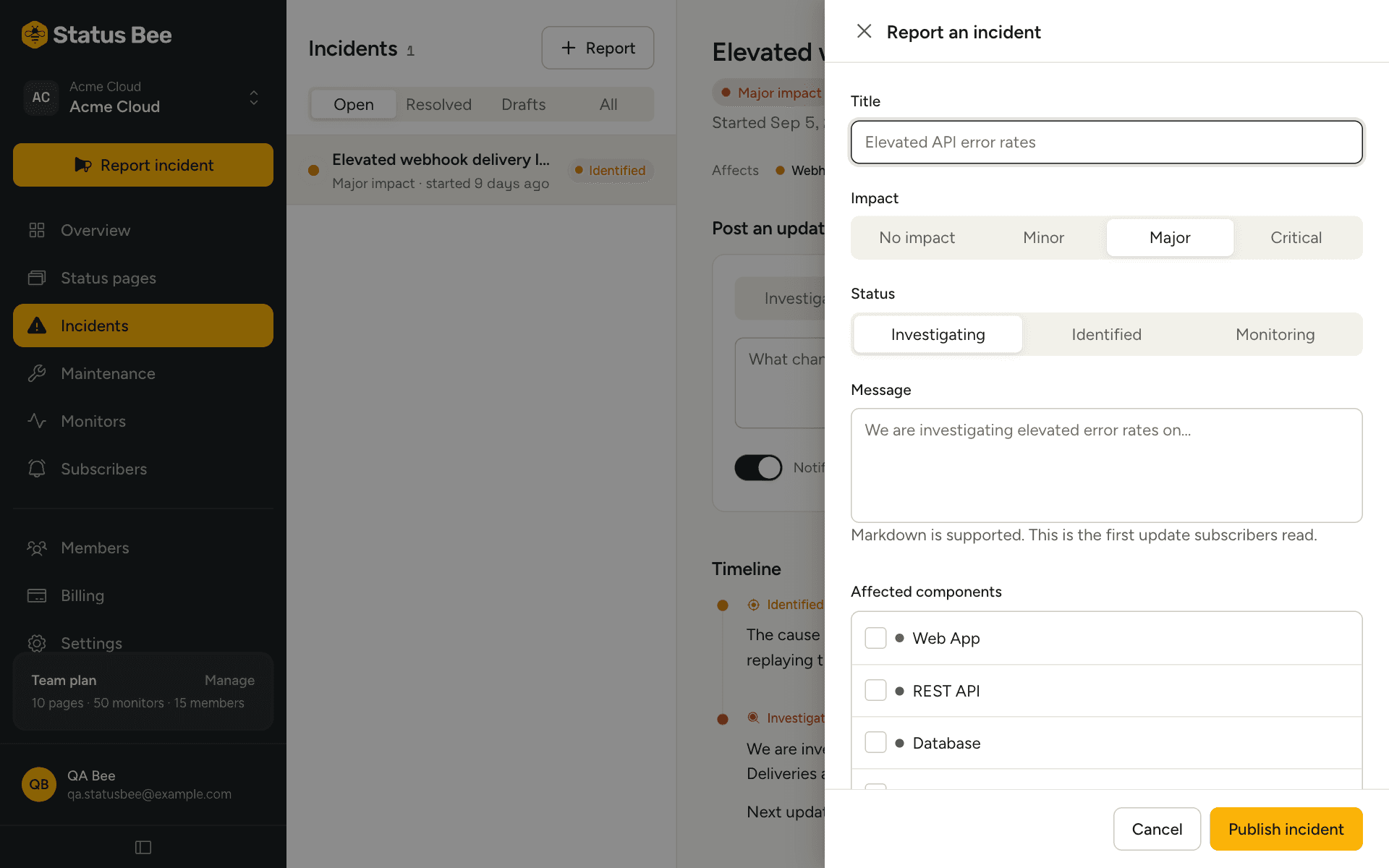
- Title and page
Say what customers see, not what broke: “Checkout errors” beats “Postgres failover”. Choose the page if the workspace has more than one.
- Status and impact
Status usually starts at Investigating. Impact is how much it hurts: none, minor, major or critical. It shows on the public page next to the title.
- Affected components
Pick the components involved. Each can be given a status override, for example Checkout to Outage, which the page shows until the incident is resolved.
- The first update
Markdown is supported. Two sentences is enough: what is affected, and when the next update is coming. Leave Notify subscribers on so it goes out.
- Publish, or save as draft
Publishing puts it on the page and notifies subscribers. A draft is visible only in the dashboard until you publish it.
The four stages
| Stage | Use it when |
|---|---|
| Investigating | You know something is wrong and not yet why. |
| Identified | You know the cause and are working on it. |
| Monitoring | A fix is in and you are watching to be sure. |
| Resolved | It is over. The incident closes and component overrides clear. |
Stages are a vocabulary, not a workflow you must walk in order. Jump from Investigating to Resolved if it was a blip. You cannot go back from Resolved; open a new incident.
Post updates
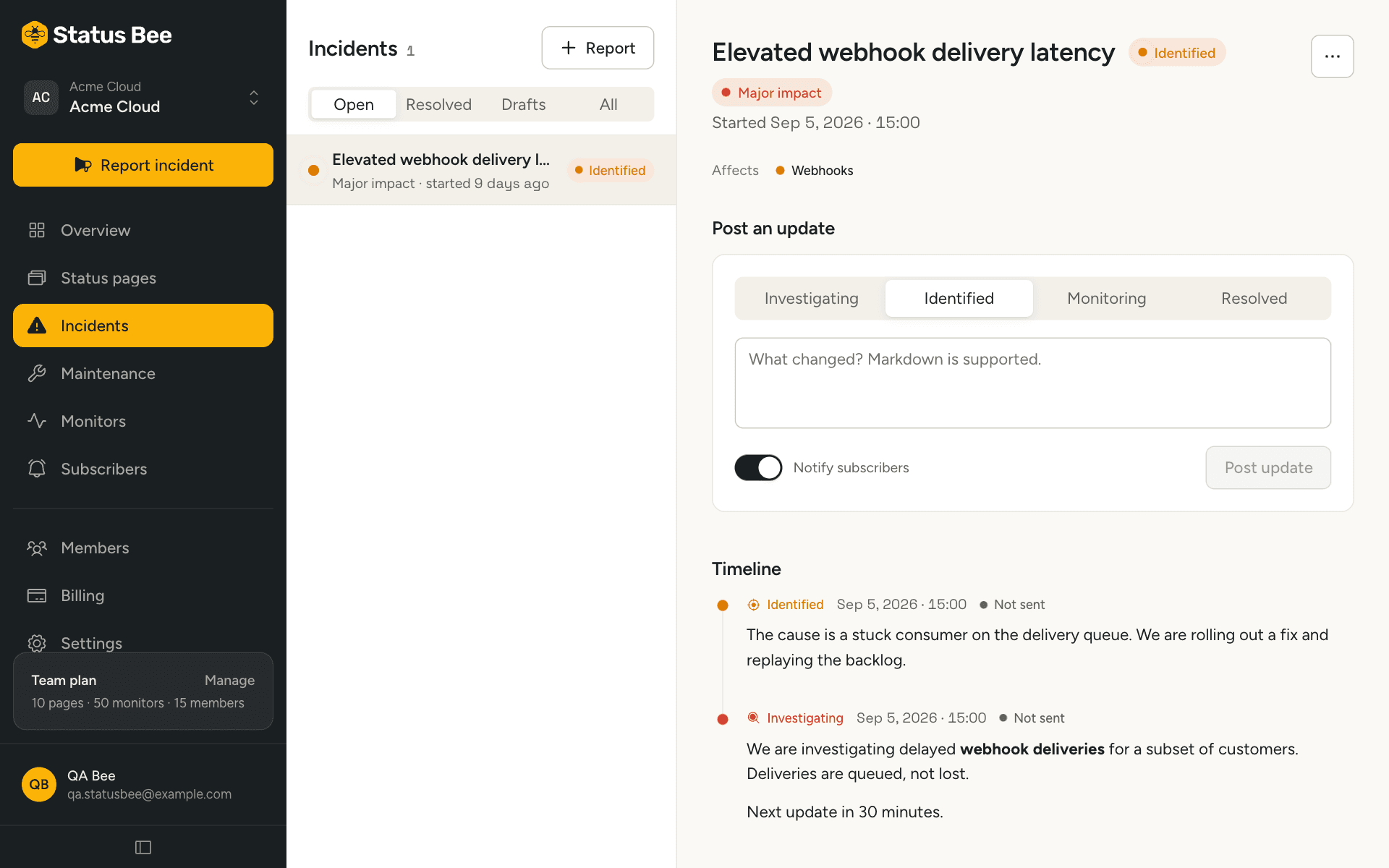
Open the incident and use Post an update. Pick the stage, write what changed, and choose whether to notify. Every update is timestamped and appears on the page's timeline, newest first. Aim for an update every 30 minutes during a live incident, even if it only says you are still working on it.
Resolve
Post an update with the Resolved stage, or use Resolve from the incident's menu, which posts a short default message. Resolving clears every component override the incident set, moves the incident to history on the public page, and notifies subscribers unless you turn that off.
Drafts
A draft is an incident nobody outside can see. Use it to prepare wording while you confirm the problem, or let a monitor rule draft one for you. Drafts are the only incidents that can be deleted; once published, an incident stays in the history and can only be resolved.
Postmortem
After resolving, add a postmortem from the incident's menu. It is Markdown, it appears under the incident on the public page, and it is the thing customers who were affected actually read. Keep it factual: timeline, cause, what changes.
Notifications
Each update has its own Notify subscribers switch. On means every confirmed subscriber who follows an affected component (or the whole page) gets the update on their channel. Off means the page changes and nobody is messaged, which is right for correcting a typo. Outbound webhooks receive every incident event regardless of the switch.
Automatic incidents
A monitor rule can draft or publish an incident when the monitor goes down, using a message template for the words, and resolve it on recovery. See Rules and automatic incidents.
API
POST /user/incidents creates, POST /user/incidents/:id/updates posts an update, POST /user/incidents/:id/resolve resolves, POST /user/incidents/:id/publish publishes a draft. See Incidents in the API reference.